Student setup: your laptop, GitHub, and one AI tool
Course home · Learning map · Models and AI literacy · Lecture 1
At a glance
- Part A: tools and accounts, before the first meeting on Monday 19 October 2026, 18:00 Israel time. Allow 1–3 hours plus download time (estimate), and finish by Sunday 18 October in the evening.
- Part B: your repository, a practice pull request,
/health, and a first assistant task, at the end of Lecture 1, after the live demo shows each step. Do not try Part B alone the night before.- You need: your own free GitHub account with a verified email for repositories, pull requests, and course submissions. An existing personal account is fine; follow Connect Git and GitHub.
- Not required: a paid AI subscription, a model API key, a GPU, a particular editor, a paid GitHub plan, or GitHub Education approval.
- Project home (required): your course product repository belongs to EASS-PART-A-2026-X, the same organization as the course material. Your personal account identifies your contributions; the organization owns the project repository (Join the course organization).
- Stuck in Part A? Post the blocker before class in the channel the instructor provides, written as PARD: problem, actions, result, desired. Redact secrets first.
On this page
You will be able to: say which terminal runs each course command, show that uv, Git, the GitHub CLI and Docker work on your laptop, and, in Part B, keep or undo an assistant’s change with Git.
Where each command runs
Read this before you install anything (about 3 minutes). Most first-week failures are a correct command typed in the wrong place: PowerShell instead of Ubuntu, a Windows folder instead of a Linux one, or a browser address that reaches a different process from the one you just started.
Predict first: on Windows, you start uv run fastapi dev in Ubuntu, then open http://localhost:8000/docs in your Windows browser. Which program answers the browser, and why can a Windows program reach it?
Check your prediction
The FastAPI development server running inside Ubuntu (WSL 2) answers. Ubuntu is a separate Linux environment, but by default WSL forwards localhost ports from Linux to Windows, so the Windows browser reaches the server in Ubuntu. If you had started a server from PowerShell instead, it would be a different Python with different files, even with the same port number.
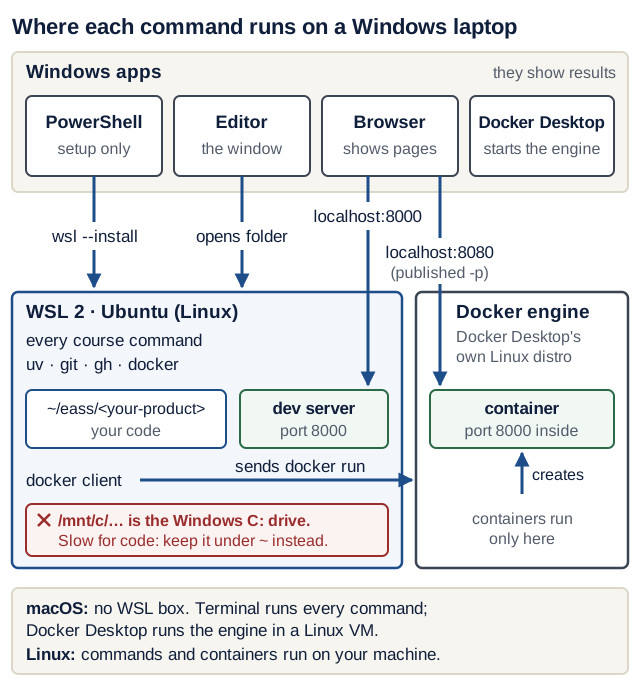
Text version of the diagram
On a Windows laptop there are three places where programs run:
- Windows apps. PowerShell (as administrator, only for
wsl --install -d Ubuntuandwsl -l -v), your browser, the editor window, and the Docker Desktop app. - WSL 2: Ubuntu (Linux). The Ubuntu terminal runs every course command:
uv,git,ghand thedockerclient. Your code lives at~/eass/<your-product>in Ubuntu’s own file system.uv run fastapi devstarts your server here, listening on port 8000. - Docker engine. Docker Desktop runs its engine in its own Linux environment (its
docker-desktopWSL distribution). Containers run there, never in Ubuntu or Windows directly.
The arrows between them:
- PowerShell installs and checks WSL (
wsl --install -d Ubuntu,wsl -l -v). After that you rarely need it. - The editor window opens the Ubuntu folder through VS Code’s WSL extension, so its terminal is an Ubuntu terminal.
- The Windows browser opens
localhost:8000; WSL forwards the port to the server in Ubuntu. - The
dockercommand in Ubuntu sendsdocker runto the engine (Docker Desktop’s WSL integration connects them), and the engine creates the container. Docker Desktop starts the engine. - A container port published with
-p 127.0.0.1:8080:8000appears on Windows aslocalhost:8080. - Warning:
/mnt/c/...is the WindowsC:drive seen from Ubuntu. Code stored there is slower to install and run; keep it under~(your Ubuntu home).
macOS: there is no WSL layer. Terminal (or your editor’s terminal) runs every course command; Docker Desktop runs the engine in a Linux virtual machine and forwards published ports to localhost. Linux: every course command runs directly on your machine; Docker Engine runs containers on the same kernel.
Optional: your editor’s terminal is sufficient. On macOS, cmux can organize terminals into labelled workspaces and panes. Keep a service’s running process visible in one pane and run tests in another; check pwd and the Git branch before each command. A terminal layout does not isolate an agent or preserve every running process after a restart. Use the course’s sandbox guidance for isolation. Windows students continue to run course commands in Ubuntu/WSL 2.
Four rules follow from the picture:
- On Windows, type course commands in Ubuntu. An Ubuntu prompt looks like
you@laptop:~$; PowerShell looks likePS C:\Users\you>. PowerShell is only for the twowslcommands. - Keep code under your Linux home:
~/eass/<your-product>, never/mnt/c/.... Recipe Box is only the lecture demo; name the folder after your own product. localhostmeans “the machine where this request starts”. Your browser’slocalhostis Windows (or your Mac); WSL and Docker forward chosen ports to it. From Lecture 8 on, each container has its ownlocalhost.- The editor shows the folder it opened. Run
pwdin Ubuntu and in your editor’s terminal: if the paths differ, the editor and your server are looking at different files.
Part A: before the first meeting
Work through these steps in order. Each one ends with a check, and the last step is a checklist you can tick.
Check your laptop first
Spend 5 minutes on this before you download anything.
You need:
- Windows: 64-bit Windows 10 22H2 (build 19045) or Windows 11 23H2 (build 22631) or later. Press Win+R, type
winver, and read the version and build. Docker notes that Home editions run Linux containers only, which is all this course uses.- Memory: 8 GB RAM, Docker Desktop’s minimum for Windows with WSL 2. On a Mac, Docker Desktop’s minimum is 4 GB, and it supports the current and two previous major macOS releases.
- Disk: about 20 GB free (a course estimate covering Docker images, Python versions, your repositories, and an optional local model).
- Virtualization (Windows): hardware virtualization must be enabled in BIOS/UEFI. Task Manager → Performance → CPU shows
Virtualization: Enabled.- WSL (Windows, after installing it below): in PowerShell,
wsl --versionshows a WSL version of 2.1.5 or later, andwsl -l -vlists Ubuntu withVERSION2.- Mac: choose the Docker Desktop installer for your chip (Apple menu → About This Mac: “Apple M…” means Apple silicon, otherwise Intel).
Docker Desktop is free for personal and education use; its licence requires a paid subscription only for professional use in larger businesses. If any check fails, contact the instructor through the channel the instructor provides before Monday 19 October, so an alternative can be arranged in time.
Version note: requirements from Docker’s Windows and Mac installation pages and Microsoft’s WSL installation guide, checked 17 October 2026.
Choose a simple route
| Your situation | Start with | Free path? (checked 17 October 2026) |
|---|---|---|
| You want a familiar editor | VS Code with the Python extension; optionally add GitHub Copilot or the Codex extension | Yes. VS Code is free. Copilot Free and ChatGPT Free (which includes Codex) have usage limits. Copilot Student is free after GitHub verifies you. |
| You already use Cursor | Keep Cursor; open the product folder and use its integrated terminal | Limited: Cursor’s Free plan includes limited agent and chat requests. |
| You prefer terminal agents | Codex CLI, Antigravity CLI, OpenCode, or Claude Code, after the basic tools work | Codex (with ChatGPT Free) and Antigravity CLI (without a paid Google AI plan) have usage-limited routes at no cost. OpenCode is a free client; you bring a model, and a free local model works. Claude Code needs a paid Claude plan or prepaid API credits. |
| You only have a browser assistant | ChatGPT, Gemini, Claude, or Z.ai chat, to discuss a small supplied example; you apply and test edits yourself | Free tiers exist for several; limits vary by account. |
| You have no assistant access, or your quota runs out | Follow the lecture examples manually, pair for discussion, and run the same local checks | Yes. |
Note: if you are unsure, do this. Install VS Code with the Python extension (plus the WSL extension on Windows). Start with the manual route or GitHub Copilot Free. Apply for GitHub Education now, and switch to Copilot Student if and when it is approved. You can change tools later; the expected product behavior and assessment stay the same.
Five different things are often called “the AI”. They can be different companies and different accounts, and signing in to one does not sign you in to the others:
| Layer | What it is | Examples | Signing in here does not give you |
|---|---|---|---|
| Editor | where you work with files | VS Code, Cursor | a model, or access to GitHub |
| Chat product | an interface for asking questions | ChatGPT, Gemini, Claude, Z.ai chat | API credits, or another company’s coding tool |
| Coding harness (coding agent) | a tool that can read your workspace and run permitted commands | Copilot, Codex, Antigravity CLI, OpenCode, Claude Code | git push rights: GitHub uses its own login (gh auth login) |
| Model | the program that generates the responses; it runs no commands itself | chosen inside the tool, or a local model | anything; it is what the other layers call |
| Provider | the service that answers model requests through an API; hosted ones are paid or metered | OpenAI, Google, Anthropic or Z.ai APIs | a chat subscription; API keys are billed separately |
Install the development tools
Install from the linked official sources. Check installer names and publishers; keep credentials out of screenshots and prompts. You do not need to install system Python separately: uv manages the project’s Python.
Windows: one Ubuntu environment for course commands
-
Follow Microsoft’s WSL installation. The first command runs in an administrator PowerShell window (right-click PowerShell → Run as administrator):
wsl --install -d Ubuntu - Restart if asked, open Ubuntu from the Start menu, and create its Linux username and password. Password entry shows no characters; that is normal. Then, still in PowerShell, run
wsl -l -vand check that Ubuntu showsVERSION 2. From now on, run course commands in Ubuntu, not PowerShell. - Keep repositories under your Ubuntu home, such as
~/eass/<your-product>. Do not mix a Windows Python environment with Linux files, and do not run the same project from two shells. - In Ubuntu, install Git and curl with
sudo apt update && sudo apt install -y git curl. Install uv and the GitHub CLI with their Linux instructions, inside Ubuntu. - Install Docker Desktop for Windows. In Docker Desktop, open Settings → Resources → WSL Integration, turn it on for Ubuntu, and keep Docker Desktop running while you work.
- With VS Code, install the WSL extension, then open your folder from Ubuntu (
code .inside the folder). The editor’s terminal must be an Ubuntu terminal. For another editor, follow its documented WSL or remote-folder support.
macOS
Install Git, uv, the GitHub CLI, and Docker Desktop for your chip (Apple silicon or Intel). With Homebrew, brew install uv gh covers two of them. Open Docker Desktop and wait until its engine is running. Run course commands in Terminal or in your editor’s terminal.
Linux
Install Git with your distribution’s package manager, then uv and the GitHub CLI. Follow Docker Engine’s instructions for your distribution and install the Compose plugin. To run docker without sudo, Docker’s post-installation steps add you to the docker group, which grants root-level privileges on that machine. On a shared or managed machine, ask first. Never make the Docker socket world-writable.
Install Python for uv
uv downloads and manages Python for each project. Install the course’s Python version once:
uv python install 3.14
The first run prints a line such as Installed Python 3.14.6 in 2.25s (your patch version and time will differ). Running it again prints Python 3.14 is already installed.
Verify
Run these in the terminal you will use in class (Ubuntu on Windows):
pwd
uv --version
git --version
gh --version
docker --version
docker compose version
Expected output, with your own numbers (current releases checked 17 October 2026):
/home/you                      (macOS: /Users/you)
uv 0.13.1 (...)                any 0.12 or newer; 0.13 recommended
git version 2.x
gh version 2.x (...)
Docker version 29.x, build ...
Docker Compose version v5.x    (v2.24 or newer is also fine)
docker compose version prints Docker Compose version v2.24 or newer. Current Docker Desktop ships v5.x, which is the same docker compose plugin (Docker skipped v3 and v4). docker-compose with a hyphen is the retired v1; 'compose' is not a docker command means the plugin is missing.
If uv is older than 0.12, run uv self update (or brew upgrade uv if you installed it with Homebrew). If a command prints command not found, restart the terminal and confirm you installed the tool in this environment.
Predict first: before you run docker run --rm hello-world, write down what will be downloaded, what will run, and what will be left on your laptop afterwards. Then run it, followed by docker images and docker ps -a.
Check your prediction
The first time, Docker prints Unable to find image 'hello-world:latest' locally and downloads (pulls) the small hello-world image. It creates a container from that image, which prints Hello from Docker! and This message shows that your installation appears to be working correctly., then exits. Because of --rm, Docker deletes the container as soon as it exits, so docker ps -a shows no hello-world container. The image stays: docker images lists hello-world, and a second run starts without downloading. Image versus container is Lecture 1’s first Docker concept.
An editor launcher such as code is convenient, not a requirement. If it is unavailable, open the product folder through the editor’s File menu. Node.js is optional unless your frontend or chosen command-line tool needs it.
Connect Git and GitHub
Git stores history on your laptop; GitHub hosts repositories; gh operates GitHub from your terminal. Signing in to an AI tool does not authenticate GitHub. This is the course’s one-time configuration; Lecture 1 refers to it instead of repeating it.
- Create or reuse your own free GitHub account. Use GitHub’s signup page and account setup guide, then verify an email address you can access. If you already have a personal account, keep it. Enable two-factor authentication and store the recovery codes securely. Use your own account for your contributions; never share passwords, tokens, or recovery codes with a teammate or assistant. GitHub Education and Copilot are optional benefits, not prerequisites for this login.
- Find your private commit email. On GitHub, open Settings → Emails and select “Keep my email addresses private”. GitHub shows an address of the form
ID+USERNAME@users.noreply.github.com. GitHub uses a commit’s email to link the commit to your account, so commits made with this address count as yours in your profile and in upstream projects, without publishing your personal address. If you also select “Block command line pushes that expose my email”, a push made with your personal address is refused (see When setup fails). -
Run the one-time configuration in Ubuntu, Terminal or your Linux shell, replacing both example values:
git config --global user.name "Your Name"
git config --global user.email "ID+USERNAME@users.noreply.github.com"
git config --global init.defaultBranch main
gh auth login
gh auth setup-git
gh auth status
init.defaultBranch mainmakes new repositories start onmain, as every lecture assumes; older Git versions otherwise createmaster. -
Answer
gh auth login’s questions like this:Prompt Answer Where do you use GitHub? GitHub.comWhat is your preferred protocol for Git operations on this host? HTTPSAuthenticate Git with your GitHub credentials? YesHow would you like to authenticate GitHub CLI? Login with a web browserghthen shows a one-time code. Press Enter, sign in to GitHub in the browser, and paste the code there. Never paste an authentication code or token into an AI chat.gh auth setup-gitmakes Git use the same login when you push; running it after answeringYesabove does no harm.
Checkpoint:
gh auth statusprints✓ Logged in to github.com account <your-username>andGit operations protocol: https, andgit config --global user.emailprints your noreply address.
For education benefits, GitHub’s student activation guide separates student verification from activating Copilot Student. Approval may take time; use another route while you wait. A payment page is never a course requirement. If you use a private product repository, arrange grader access through the instructor’s submission instructions, and never grant an assistant broad access to unrelated repositories.
Join the course organization
- Give the instructor your GitHub username through the course channel. Accept the organization or assigned project repository invitation while signed in to that account. An organization membership and access to a particular private repository are different permissions; the instructor arranges the access you need.
- Agree a unique product repository name with the instructor. In GitHub’s repository creation form, select EASS-PART-A-2026-X as Owner. In the CLI, always include the owner:
gh repo create EASS-PART-A-2026-X/study-planner --private --source=. --remote=origin --push(replacestudy-plannerwith the agreed name; run this only in Part B, after your first commit). Without the owner prefix,gh repo createdefaults to your personal account. See GitHub’s repository creation guide and the CLI manual. - If the organization is missing from the Owner menu or creation is denied, ask the instructor to grant the intended access or create an empty project repository for you. Lecture 1 shows how to connect that existing repository. Do not create a personal replacement for submission. If you already started in a personal repository, ask the instructor to arrange its transfer while preserving its history.
- After the first push in Part B, run
gh repo view --json nameWithOwner,urlfrom the product folder. Check thatnameWithOwnerbegins withEASS-PART-A-2026-X/, and that all contributors and graders can access the repository. Organization ownership alone does not prove that everyone has access. Submit this organization repository URL for every assignment.
Keep course product code in its own repository, separate from lecture-notes. Your external open-source forks and PRs continue to follow each upstream project’s contribution process.
Choose and configure one assistant
Documentation checked 17 October 2026. Features, model access, eligibility, and quotas vary by account and change often. Use official installers and your own account. These are setup routes, not promises of unlimited free use. Open only the route you chose.
Cursor
Follow the Cursor quickstart: install, sign in, and open your product folder. Begin by asking it to explain the entry point. Inspect proposed edits in the diff and run the checks in the integrated terminal. Review Privacy Mode and data handling before supplying code. Cursor’s pricing page lists a Free plan with limited agent and chat requests; check your account’s current plan rather than assuming student access or every model is included.
GitHub Copilot in VS Code
Install VS Code and its Python extension, then follow GitHub’s Copilot extension setup. Sign in to the GitHub account whose plan you intend to use. Start with an explanation in chat, and tell inline completion apart from a mode that edits files or runs commands. Review every change yourself. On the Free and Student plans, models are chosen by automatic model selection, so a missing manual model picker does not mean your setup failed.
Codex
Use the official Codex IDE extension in VS Code or a supported compatible editor, or install the Codex CLI. OpenAI’s pricing page lists Codex as included in ChatGPT Free and Go, with usage limits. Open your product folder and choose “Sign in with ChatGPT”; for the CLI, run codex from that folder. Inspect the workspace and permissions before your first edit. Start with an explanation, then one scoped change. Account sign-in and API-key access are different routes; API billing is not required for this course.
ChatGPT and other browser chats
Follow the ChatGPT quickstart, or use the official Gemini, Claude, or Z.ai chat product available to you. Supply a small code excerpt, the file path, the exact error, and the behavior you want. In a plain chat without workspace tools, the assistant has only the context you paste and cannot verify your local test run. Apply the proposal locally and run the check. A chat subscription does not automatically grant API credits or another company’s coding-tool subscription.
Antigravity CLI (Google; replaced Gemini CLI for personal accounts)
Since 18 June 2026, Gemini CLI no longer serves consumer accounts: individual users on the no-cost tier and Google AI Pro and Ultra subscribers were moved to Antigravity CLI (Google’s announcement, 19 May 2026). Gemini CLI remains for paid Gemini API keys and organization licences; the course requires neither. Antigravity’s plans page gives accounts without a Google AI Pro or Ultra plan a quota refreshed weekly, and says every plan includes the CLI. Install it with Google’s getting-started guide; the command is agy, and agy --version checks the installation. On Windows, use the Linux installer inside Ubuntu: Google’s page does not mention WSL, so confirm that agy starts in your product folder before relying on it. School-managed Google accounts can have different rules.
OpenCode and Z.ai
OpenCode is a free, open-source client: you connect it to a model provider, and hosted models are not free just because the client is. Its providers page shows how to use a free local model through Ollama. Check whether you use OpenCode V1 or V2: their default executable name is the same, while installation packages and permission configuration differ. Follow the matching documentation, open your project, connect a provider, and inspect the selected model before a task.
For GLM models, follow Z.ai’s OpenCode integration. Its documented V1 route uses opencode auth login, the appropriate Z.ai provider, and /models; check compatibility before applying it to V2. Follow the current key-management rules: Standard keys and Coding Plan keys are billed differently, and a Standard key can incur API charges even when you have a Coding Plan. Do not buy a plan to complete a lab.
Claude Code and other assistants
Claude Code’s quickstart requires a Claude Pro, Max, Team or Enterprise plan, a Claude Console account with prepaid API credits, or access through a supported cloud provider: there is no free route. If you already have access, open the product directory, begin with an explanation, inspect the permission mode, and review the diff of one small change. Other assistants are also fine: use the official setup, match the instructions to the version you installed, and do the same first task as everyone else (Part B).
Permissions, privacy, and cost
- Start in your product folder with the narrowest useful access. Read approval prompts and commands before accepting them; keep control of pushing, publishing and deleting data.
- Use synthetic examples. Do not upload credentials, grades, personal records, classmates’ submissions, or private upstream code without permission.
- Read the tool’s data settings. A privacy option can affect training or retention while requests still leave your laptop. Running a client locally is different from running the model locally.
- Keep keys out of source code, prompts, screenshots, and shared session links. Use the tool’s documented credential storage; configure application secrets separately in the service that needs them.
- Check the active account, selected model, allowance, and any overage setting. Stop at a quota message or billing prompt and switch to the manual route.
- Product tests use Pydantic AI’s offline fake models (
TestModel,FunctionModel), introduced in Lecture 6. They never need your editor’s assistant to be signed in.
Ready-for-class checklist
Tick these before Monday 19 October. Nothing here needs a course repository yet.
- My laptop passes the laptop check, or I have told the instructor what fails.
- I can sign in to my own free GitHub account in the browser, my email is verified, and I have secured the account with two-factor authentication and saved its recovery codes privately.
- I have given the instructor my GitHub username and accepted any course access invitation provided; if access is missing, I have reported it before class.
- In the terminal I will use in class, the Verify commands print versions (uv 0.12 or newer), and
uv python install 3.14has run. docker run --rm hello-worldprintsHello from Docker!, and I can say whatdocker imagesanddocker ps -ashow afterwards.gh auth statusshows that same GitHub username, and my Git email is my noreply address.- I can open a folder in my editor, and
pwdin its terminal matchespwdin my Ubuntu or Mac terminal. - I have one assistant route or the manual fallback, and I know which account and limits it uses.
Part B: at the end of Lecture 1
In class, Lecture 1’s live demo and lab create everything below for your own product, one checkpoint at a time. This part collects the end state, the first assistant task, and the Git commands that let you undo an assistant’s change safely. Unfinished items go to “finish before Lecture 2”.
Your repository and health check
- A repository named after your product (for example
study-planner) at~/eass/<your-product>, pushed toEASS-PART-A-2026-X/<your-product>with your own GitHub login. Recipe Box is only the lecture demo. Use the name and access agreed with the instructor. - A practice pull request on your own repository, merged. It never counts toward the three upstream PRs.
- From
backend/,uv run fastapi devstarts the server, and in a second terminalcurl http://localhost:8000/healthprints{"status":"ok"}.
Do the same first task in any tool
Ask your assistant to explain before you ever ask it to edit. Paste this prompt with your product folder open:
Read backend/app/main.py. Explain how GET /health reaches health().
Do not edit anything. Tell me the exact command to start this service
and the request I can send to check it. State what you have not run.
Write down your own answer to the same three questions first, then compare.
Check the assistant's answer
A correct answer says, in its own words:
- The route:
@app.get("/health")registershealth()forGET /healthon theappobject inapp/main.py.fastapi devimports thatapp(the[tool.fastapi]entrypoint inbackend/pyproject.toml), matches the request’s method and path, callshealth(), and returns its dictionary as JSON. - The start command:
uv run fastapi dev, run frombackend/. - The check:
curl http://localhost:8000/health, which prints{"status":"ok"}, or http://localhost:8000/docs in a browser. - What it has not run: a chat or an agent that only read the file should say it has not started the server or sent the request.
Red flags, in any tool:
- It claims it ran something but shows no command output, or the output does not match yours.
- It cites a file, function or setting that does not exist in your folder.
- It suggests
pip install …, oruvicorn main:appfrom the wrong folder, instead ofuv runfrombackend/. - It edits a file even though you wrote “Do not edit anything”.
Run the commands yourself. Then, if you want one small edit, give the assistant a short work order using the field names from the one work-order template (Outcome, Files, Non-goals, Verify with, Review focus), always on a throwaway branch:
git switch -c try-assistant              # an experiment branch; main stays safe
# ... the assistant makes its change ...
git status                               # which files changed?
git diff                                 # read every changed line
Keep it: git add <file>, git commit -m "…", then git push -u origin try-assistant and gh pr create --fill, as in Lecture 1. Discard it:
git restore README.md                    # throw away uncommitted edits to one file
git switch main
git log --oneline main..try-assistant    # commits that exist only on the experiment
git branch -D try-assistant              # delete the experiment branch and those commits
Predict first: you edited README.md but did not commit or stage it. What does git restore README.md do to that edit, and can Git give it back afterwards?
Check your prediction
It replaces your working copy of README.md with the last committed version, so the edit disappears. Git cannot give it back, because the edit was never committed or staged; Git only keeps what you committed. That is why you read git diff before restoring. For more undo commands (unstage, amend, revert a pushed commit), see Git you need to operate.
Explain after: which part of the assistant’s answer did you verify yourself, and with which command? Write it as the first line of your product README’s AI-use note.
Optional: a five-line AGENTS.md
Optional: many coding assistants read a file named AGENTS.md at the repository root as project instructions; Codex and Claude Code document this. Five lines save you repeating the basics in every session:
# AGENTS.md
- Start the backend: `cd backend && uv run fastapi dev`
- Health check: `curl http://localhost:8000/health` must print `{"status":"ok"}`
- Do not edit `.env` or any file that holds secrets.
- Change only the files named in the work order.
- Say which commands you did not run.
Security:
AGENTS.mdis guidance, not a permission boundary. An assistant can ignore it or misread it, and a file in a dependency or a pasted text can contain instructions too. Real limits come from the tool’s permission settings and where it runs: read Agent sandboxes: Week 1 minimum before your first agent session, and the agent-driven engineering guide for how instructions, tools and checks fit together.
Ready-for-Lecture-2 checklist
gh repo view --json nameWithOwner,urlidentifiesEASS-PART-A-2026-X/<your-product>, the instructor can access it, and its practice PR is merged (gh pr list --state mergedshows it).- From
backend/,uv run fastapi devstarts, andcurl http://localhost:8000/healthprints{"status":"ok"}. - I compared an assistant’s explanation (or a classmate’s, on the manual route) with my own, and I can say which part I verified.
- I can read
git diff, discard an edit withgit restore <file>, and delete an experiment branch.
When setup fails
Find your symptom, run the first check, then apply the safe fix. If it still fails, send a PARD message with the exact error line, the command you ran, and the output of the first check. Redact secrets first.
| Symptom | First check | Safe fix |
|---|---|---|
command not found | Restart the terminal; check you are in the environment where you installed the tool (Ubuntu, not PowerShell) | Install the tool in the environment where you run course commands |
| WSL install fails with a virtualization error, or Docker Desktop shows “Unexpected WSL error” | Task Manager → Performance → CPU: Virtualization | Enable hardware virtualization in BIOS/UEFI using your laptop maker’s instructions; on a managed laptop, ask the instructor |
wsl -l -v shows Ubuntu with VERSION 1 | wsl --version in PowerShell | wsl --set-version Ubuntu 2 in PowerShell |
Cannot connect to the Docker daemon | Is Docker Desktop running? Is Settings → Resources → WSL Integration on for Ubuntu? | Start Docker Desktop and enable the integration; on Linux, sudo systemctl start docker |
Linux: permission denied … /var/run/docker.sock | groups does not list docker | Docker’s post-installation steps, then log out and in; the docker group is root-equivalent, so on a managed machine use sudo docker … for today and ask. Never chmod the socket |
'compose' is not a docker command | docker compose version | Update Docker Desktop, or install the Compose plugin on Linux. Do not install the retired docker-compose v1 |
Push rejected with GH007: Your push would publish a private email address | git config user.email | Set your noreply address (above), run git commit --amend --reset-author --no-edit, then push again |
| Git asks for a username and password | gh auth status | gh auth setup-git, then push again. GitHub does not accept your account password for Git |
Organization missing, repository creation denied, or Git push denied (403, or “permission denied”) | gh auth status and git remote -v; check the repository owner | Sign in as your own invited account, accept the course invitation, and ask the instructor to fix access or create the repository under EASS-PART-A-2026-X; do not substitute a personal repository |
| Installs are slow, or the server misses your edits | pwd starts with /mnt/c | Clone or move the project to ~/eass/<your-product> and reopen it from Ubuntu |
| Docker Desktop on a Mac will not start, or reports the wrong architecture | Apple menu → About This Mac: chip or processor | Reinstall the Docker Desktop build for Apple silicon or Intel |
no space left on device during a pull or build | docker system df and your free disk space | docker system prune removes stopped containers, unused networks, dangling images and build cache after asking; it keeps volumes. Free other disk space if needed |
| Editor shows different files from the terminal | pwd in both | Reopen the same Linux folder (on Windows, code . from Ubuntu) |
| Assistant cannot see your code | The selected workspace and attached files | Ask it to name the file it read; reopen the product folder |
| Wrong model or authentication error | Active account, provider, model ID, and key type | Sign in again with the account you intend to use; check the provider’s model list |
| Quota exhausted | The tool’s usage page | Pause model use; continue with the lecture examples and local tests |
On a managed laptop without installation rights, contact the instructor early to arrange an approved environment. Browser chat alone cannot run the required Docker stack.
Instructor pilot: use the student setup pilot to check real invitations, laptop setup, public-site access and grader cloning. Automated course checks cannot establish those account-specific results.